
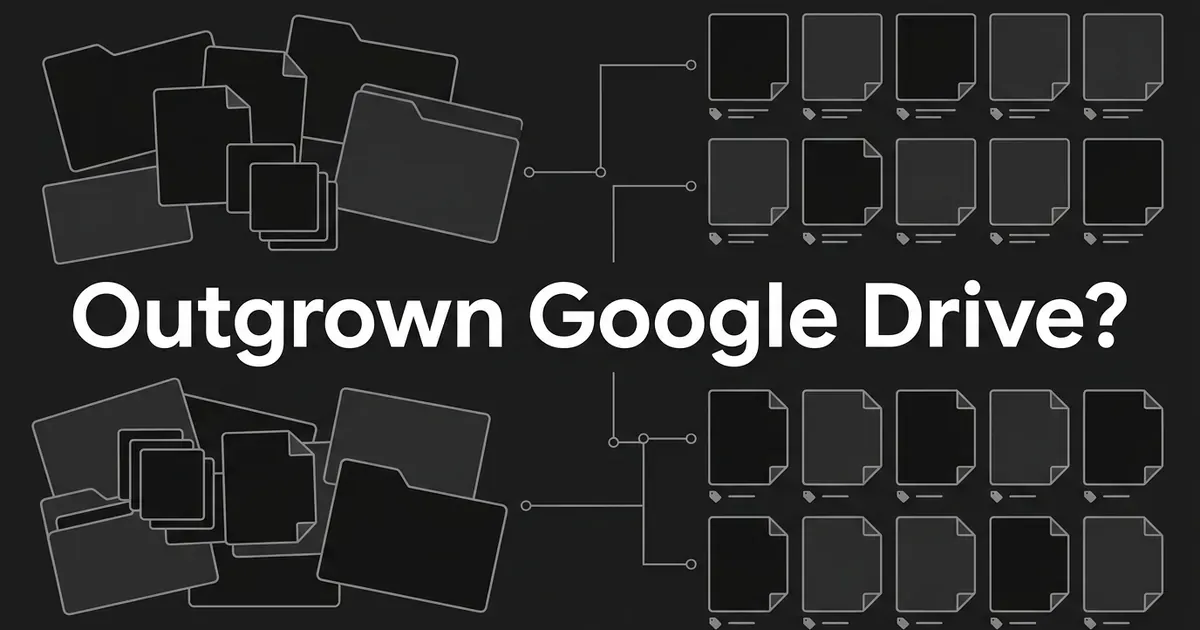
If your team keeps losing track of the right logo, the right campaign image, or the right version of a video, you may be asking yourself, do you need a DAM, or is Drive still enough? It's a fair question, and you don't have to guess at the answer. This guide walks you through a short audit you can run on your own files and your own people, so that by the end you'll know whether your team has outgrown Google Drive, and if it has, you'll have a list of requirements to take into any vendor demo.
You'll need a few hours, access to the folders where your assets live, and two or three teammates who search for and use those files every week. None of the sources we reviewed gives a reliable file count or team size at which a DAM becomes necessary, so the decision rests on what goes wrong in your own work, and that's what we'll measure.
Step 1: Decide which assets and workflows the audit covers
Start small. Pick one or two content workflows that matter, such as a monthly campaign or your blog and social pipeline, and follow them from the first request to the place the asset gets published. Write down which files get reused again and again: approved logos, campaign images, product photos, diagrams, video, templates, and the channel-specific versions of each, which is the kind of reuse covered in AI content repurposing workflows.
For each one, note where it lives today, who creates it, who approves it, who uses it, and where it ends up. Be honest about the messy places. Assets often sit in shared drives, in individual drives, on a designer's laptop, or in a folder an agency sent over last spring. If you only look inside the one folder everyone agrees is "the" folder, you'll miss half of the picture.
You'll know this step is done when you have a simple inventory of asset types, storage locations, contributors, approval points, and destinations. A shared spreadsheet is plenty.
Common mistake. Treating "all our files" as the scope. Your goal is to separate the current, reusable assets from the old, duplicated, expired, or archival material. Teams that skip that sorting tend to carry the clutter straight into whatever they adopt next. If you've never separated an inventory from an audit before, a content audit versus a content inventory is a helpful distinction to have in your head, because you're doing a bit of both here.
Step 2: Measure how often people fail to find the right file
This is the step that tells you the most, and it's the one teams skip because it feels too simple. Give your teammates a handful of real requests. Ask them to find the current approved asset for a named product, campaign, region, or channel. Ask them to tell you which version is approved, and to find the source file or the related versions of it.
As they work, write down whether they succeeded, where they looked, how long it took, whether they had to ask someone else, and whether they gave up and downloaded or re-uploaded a substitute. Also write down any duplicates you already know about.
Use real requests from the last month or two, not an invented test. You're after a baseline you can compare against later if you pilot something new, so keep the same kinds of requests and the same measures.
You'll know this step is done when you can describe the repeating patterns. Maybe the same three people get asked for the same five files. Maybe people can find a file but can't tell it from its older sibling. One thing to watch is the difference between a true duplicate and a legitimate alternate, like a different crop, language, or campaign version. Those are not the same problem.
Common mistake. Counting files instead of testing retrieval. A big library by itself is not proof you've outgrown Drive. A big library that people can't search, and can't trust once they've found something, is a different story.
Step 3: Check the usage rights on a sample of assets
Now pick a few assets that carry restrictions, for example a photographer's work, a customer's logo, a talent release, or something you licensed. For each one, see whether you can answer five things without asking a colleague: who owns it or where it came from, what permission you have to use it, which channels it's allowed in, which territories or time limits apply, and when that permission runs out.
Then write down where the contract, release, or email that proves it actually lives, and who is responsible for keeping that record current. If you can't tell, treat the answer as unknown, and treat unknown as "not cleared," not as permission.
It helps to know what a good rights record looks like. The IPTC photo metadata standard separates the current copyright owner from the copyright notice, and it puts notes on usage rights in a "Rights usage terms" field. Rights fields in a DAM often capture owner, license type, permitted channels, territories, and an expiration date. You can borrow those same fields for your audit even if you never buy anything.
The warning signs are pretty recognizable. Someone relies on a colleague's memory, the license is in an email thread nobody can find, or an image gets reused for a new campaign without anyone checking the original scope.
Pro tip. A DAM can't grant permission or fix missing paperwork. It can only hold and surface the rights information you give it, so the value depends on that information being accurate and on someone owning it. Where the rules are unclear, ask your legal or licensing people to define them before you try to configure anything.
You'll know this step is done when, for the assets you tested, you can say who may use them, where, for how long, and where to verify it. Anything unclear or expired should have a named owner and a "hold until checked" habit.
Step 4: Test whether versions and approvals protect the right asset
Pick a real asset and walk it through a change. Upload a new master, replace or create a derivative, send the current file for review, make an edit after approval, and then look at what a publisher or agency partner would actually be able to open. At each point, ask how your team tells apart a draft, a file in review, an approved file, a superseded one, and an expired one.
Before you decide "we have no version control," it's worth knowing what Drive already does. For non-Google files like images and video, Drive keeps the head revision, and older revisions that aren't marked "Keep Forever" can be purged. According to Google's documentation on managing file revisions, those older revisions are typically kept for 30 days, but they can be purged earlier once a file has 100 revisions that aren't marked to keep. You can mark up to 200 revisions per file as "Keep Forever," and those count against your storage. Docs, Sheets, and Slides work differently.
Drive also has an approvals feature, though it depends on your admin settings, your Workspace edition, who owns the file, and the permissions in place. Reviewers need access to the file, since Drive won't share it for them. If your admin turned on the setting that requires all approvers to review the same content, an edit resets approvals and everyone has to approve again. If that setting is off, edits don't reset anything. Google's help page on getting approvals on files is worth reading with your admin, and then test the setup your team really has.
A brand consistency QA checklist can give your reviewers something concrete to check against. Content governance, approvals, and compliance goes deeper on how larger teams set up review gates.
You'll know this step is done when people can reliably point to the latest approved asset and its related versions, when an edit after approval triggers the review you expect, and when a superseded or unapproved file isn't mistaken for something you can publish.
Common mistake. Saying "we need version control" without checking what Drive gives you. The more useful, and more accurate, problem statement is often something narrower, like "people can't tell which file is the approved master" or "an edit after approval doesn't send the file back for review." Those are the symptoms that point to a real gap.
Step 5: Decide whether the problems are frequent enough to justify a change
By now you have a pile of observations. Sit down with your teammates and go through them one at a time. For each problem, write down how often it happens, which roles and workflows it touches, what it costs when it goes wrong, how much time the workaround takes, and whether a change in Drive would fix it. That last column matters. A shared drive, a set of labels, a clearer naming habit, or a bit of training may be the whole answer for a problem that looks bigger than it is.
Drive has more to offer here than people often assume. Shared drives make the organization the owner of the files, so they stay put when someone leaves. Drive labels let you define your own metadata fields, such as text, date, selection, and user fields, and then search by them. So the useful question is whether your team has actually designed, filled in, and kept up that kind of structure, and whether it holds up in daily use.
Here are the kinds of evidence that make a stronger case for moving on from Drive:
- People repeatedly can't find a file they know exists, or they need someone else to find it for them.
- The same files get uploaded again and again, or different people share different files believing each is the approved one.
- Nobody can connect usage terms and expiration dates to an asset at the moment someone picks it or sends it.
- An edit, an approval, or a handoff to a derivative leaves doubt about exactly which version went out.
- Permissions and external sharing are hard to manage consistently for the people who need the assets.
- Someone is maintaining a fragile spreadsheet, a strict naming scheme, duplicate folder trees, or a set of manual reminders just to make up for missing lifecycle control.
- The current process causes avoidable delays or rework across several teams, channels, or recurring campaigns.
A simple way to weigh all of this is to look at two things together. One is how often the problem shows up, from isolated to recurring. The other is what it costs, from a small inconvenience to a real control or rights exposure. A problem that is isolated and low in cost usually means you can stay on Drive and tidy up the process. A problem that recurs but only costs some time is worth testing against shared drives and labels first. A problem that is isolated but carries rights exposure needs an owner and a hold step before anything else. And a problem that recurs and carries real exposure is the point at which it makes sense to evaluate a DAM.
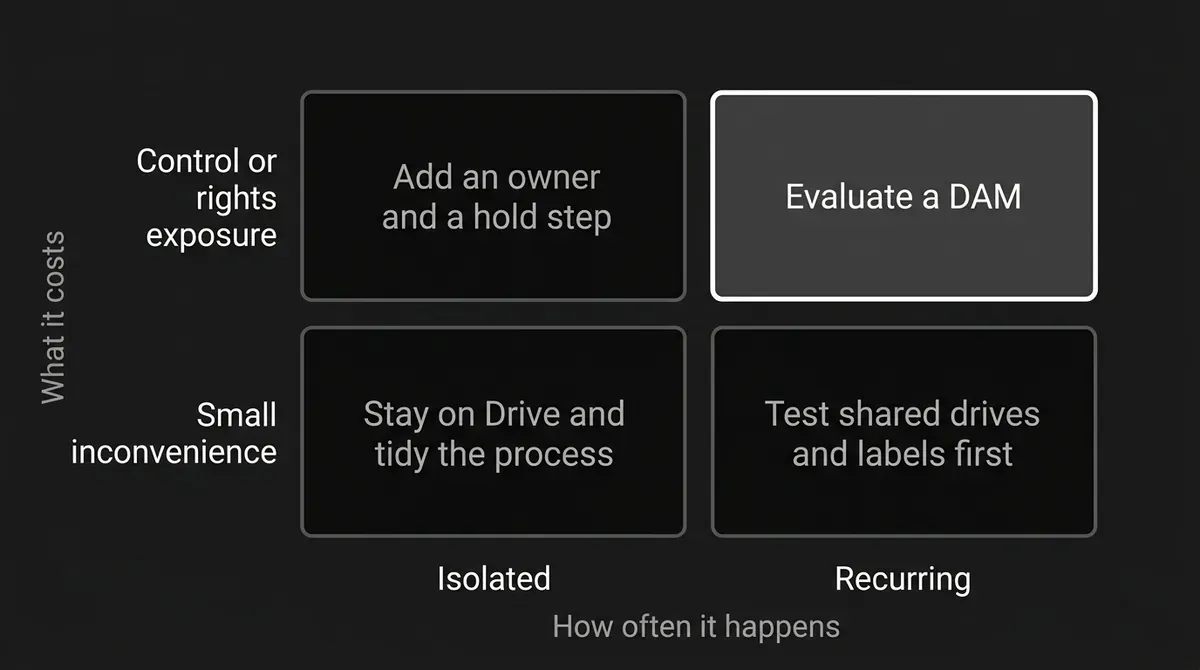
If you want one sentence to hold on to, consider a DAM when problems keep coming back across normal work, carry real business or rights consequences, or force you to keep adding fragile manual controls. If the issues are rare and Drive's shared drives, labels, approvals, and a bit of governance fix them reliably, then you may not be at that point yet, and that's a fine answer. There's no honest numeric threshold to give you here.
You'll know this step is done when the decision is written down with its evidence: what you tested in Drive, what still isn't solved, and why the leftover friction or exposure matters. That write-up is also useful if you need to ask a manager for budget.
Step 6: Turn what you found into digital asset management buying criteria
If the audit points toward a DAM, the next job is to turn each problem into a requirement. Digital asset management is just the practice of storing, organizing, finding, sharing, and distributing files like images, video, and documents, and a DAM for content team use gets judged on how well it does those jobs for your people. Write them in the form "Our team must be able to..." and then ask every vendor to show you that exact thing using your own sample assets and your own people. A feature name on a slide is not proof that it works the way you need.
This is where a content asset management system, or whatever label a vendor puts on theirs, gets judged on what it does for your team and not on what it's called. Here are the areas to cover.
Repository, metadata, and search. Check that search reaches the file types and locations you plan to manage. Ask how you configure metadata fields and controlled lists, and what fields you'd want, such as asset type, brand, product, campaign, creator, owner, language, territory, permitted channel, rights status, expiry, and approval status. Find out who will own those fields. Then search with the real words your marketers, designers, and agency partners use, including their synonyms, and see if the previews and details are enough to tell similar files apart. Since Drive labels already give you some metadata and search, be specific about what extra you'd get.
Rights, access, and lifecycle. Have the vendor show you how rights terms and their supporting evidence are recorded, who is accountable, and whether restrictions and expiry dates are visible at the point where someone picks the asset. Ask what happens when an asset expires: an alert, a status change, removal from normal search, or something else, and whether that behavior is built in, configurable, or depends on an integration. Test role-based access, outside sharing, and download controls against your own security policy.
Versions, approvals, and derivatives. Ask to see how a revised master relates to its earlier versions and to its channel-specific derivatives. Check that users can tell draft, review, approved, superseded, and expired apart. Then do the thing from Step 4 again: edit an asset after approval and watch who has to reapprove and whether the released file is still easy to identify. Not every system offers compare or restore behavior, so ask rather than assume.
Distribution, workflow, and integration. Run your real review, comment, routing, approval, release, archive, and notification steps through the tool. Ask whether it creates or delivers the formats and renditions you need, since many platforms do but it isn't universal. Confirm that it connects to the tools you actually use to create, publish, and collaborate, and find out what's native, what needs API work, and what needs a separate service. Also try giving a partner access to one specific asset and not the whole library. If your team also runs content from a lean setup, the minimum content ops stack for a lean team is a handy reference for thinking about how a new tool fits next to the rest of what you use.
Administration, migration, and long-term fit. Ask about bulk import, how existing metadata maps across, how duplicates are handled, how migration gets validated, storage and file size limits, backup and recovery, access logs, and export. Ask what happens to your metadata, rights evidence, versions, and master-to-derivative relationships if you leave. Think about adoption too, including who will apply metadata and who will maintain the taxonomy and permissions. Finally, compare the full operating cost, including setup, migration, integrations, storage, admin time, training, and ongoing governance, against what your workarounds cost you today. We can't give you a vendor price or a market-wide cost figure here, so you'll need to collect real quotes.
You'll know this step is done when your requirements are ranked and each critical one has a demonstration or pilot test and a clear pass or fail.
Common mistake. Judging by the feature list. A vendor can truthfully say a product has approvals and rights fields and still not do the specific thing your workflow needs. The demo with your own files is where you find that out.
Step 7: Pilot it, clean up, and pick one source of truth
When you've picked a candidate, don't move everything at once. Run a pilot with a bounded set of high-use assets, at least one real rights-restricted example, and the people who create, approve, and distribute them.
Before anything moves, go back to the inventory from Step 1. Check every likely location, remove duplicates, and sort what's left into active, archived, or excluded. Settle your taxonomy, naming conventions, upload and tagging steps, access rules, and who owns governance. Map the metadata you already have into the new fields, and keep the source details you don't want to lose. Teams often find that this cleanup does more for findability than the tool itself, and auditing what you already have before planning anything new pays off the same way on the written side of content. Alt text and file descriptions count as metadata too, so writing alt text that works for search and accessibility is a small habit worth starting during the cleanup. The technical image optimization checklist covers file names and formats.
Then check the pilot end to end. Look at the links between assets and their derivatives, how accurate the metadata is, whether the rights records came across, how permissions behave, preview and download, approvals, search, and any integrations. Compare migrated counts with the originals and spot-check a sample. Write down how people request changes, who approves releases, how rights get reviewed, and what happens to the old Drive collection. If Drive stays around for drafts or records, say clearly which place is the authority for released, reusable assets, so you don't end up with two competing "approved" sources.
You'll know this step is done when a pilot user can finish the whole workflow without going back to an undocumented workaround, when the asset owner and metadata roles are assigned, when migration validation passes the tests you set, and when everyone knows where the approved asset lives.
Common mistake. Migrating every file before sorting out duplicates, unclear rights, taxonomy, and status. That just moves the clutter to a new address.
What to do next
If you run only the first three steps of this DAM for content team audit this week, you'll already know more than most teams do. Pick one workflow, run the retrieval test with real requests, and check rights on five restricted assets. Write down what you find. Then give Steps 4 and 5 a second sitting and decide whether Drive, with a few changes, covers you, or whether you have a repeating, costly problem that justifies looking at a DAM. If you're also unsure how mature your overall setup is, the four stages of content operations maturity give you a way to place yourself. How lean teams run content operations shows what a small team can reasonably keep up.
If you're still asking do you need a DAM after the audit, let the evidence you wrote down answer it. A quick note on where DeepSmith fits, so there's no confusion. DeepSmith isn't a DAM and doesn't manage a rights-controlled library of images and video. It's the part of the stack that handles the writing side: Deep IQ keeps your brand context in one place, Content Studio turns planned ideas into publish-ready articles, and Produced Content is where you review and publish them. If you want to see how that works while your asset question gets sorted, you can start a free trial of DeepSmith and look at real drafts before you pay.